Understanding tinazeok dash cam use without app is essential for users who prioritize privacy, simplicity, or find themselves in areas without reliable smartphone connectivity.
This guide is designed for both new and experienced drivers who want to manage their dash cam hardware independently. We assume a basic level of familiarity with vehicle electronics, such as handling a microSD card and connecting peripherals to a computer.
By the end of this guide, you will be able to configure your camera, manage storage, and retrieve critical driving footage entirely through the device’s onboard interface and external hardware tools.
- Hardware requirements for offline operation.
- Navigating the physical onboard menu system.
- Managing loop recording and storage cycles.
- Manual footage retrieval via microSD card.
- Best practices for data integrity without software.
Overview & Prerequisites

Essential Equipment
To operate your camera independently, ensure you have a high-endurance Class 10 or higher microSD card. Additionally, you will need a reliable USB card reader that supports the format of your memory card to ensure you can transfer files to a computer for long-term storage or viewing.
Target Audience for Offline Operation
This manual is ideal for users who do not wish to grant app permissions to third-party software or who prefer the physical reliability of direct interaction. Before diving in, check out Do dash cams record when the car is off? Everything You Need to Know for 24/7 Security to understand how your device handles power cycles.
Core Concepts & Fundamentals

Onboard Menu Logic
Most Tinazeok cameras utilize a "Circular Logic" menu system. By using physical buttons—typically labeled Menu, OK, Up, and Down—you navigate through the system settings. Understanding that the "Menu" button often toggles between record mode and settings mode is the fundamental secret to independent use.
File System Management
Dash cams store data in "chunks" (usually 1, 3, or 5-minute increments). When the card is full, the camera overwrites the oldest file. Learning How Does Baby Car Camera Work? Top 5 Systems for 2026 Reviewed can provide context on how these storage structures mirror broader dash cam technology.
| Feature | App-Dependent | Manual Offline Mode |
|---|---|---|
| Setup | Automated via Bluetooth | Manual Menu Navigation |
| Viewing | Live Feed | Playback on Device/PC |
| Storage | Cloud/Phone Sync | SD Card Management |
Step-by-Step Execution Guide

Preparation and Configuration
Begin by securing the unit and ensuring it has a constant power source. Even without an app, your dash cam requires a stable energy flow to maintain date and time stamps during power loss.
Direct Interaction Workflow
Recommended Equipment & Solution

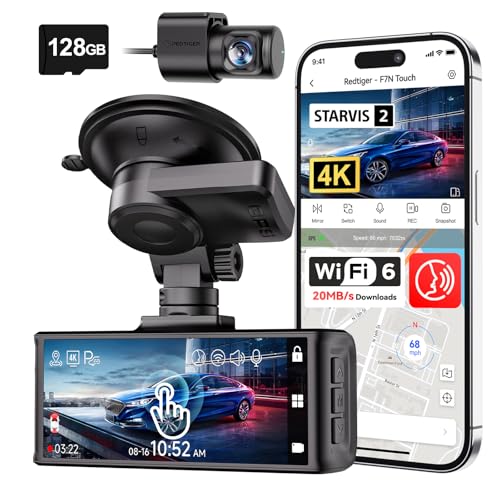
Terunsoul 4K+4K Dash Cam, Free 128GB Card
A reliable pick for Terunsoul 4K+4K Dash Cam, Free, selected based on this article's guidance.

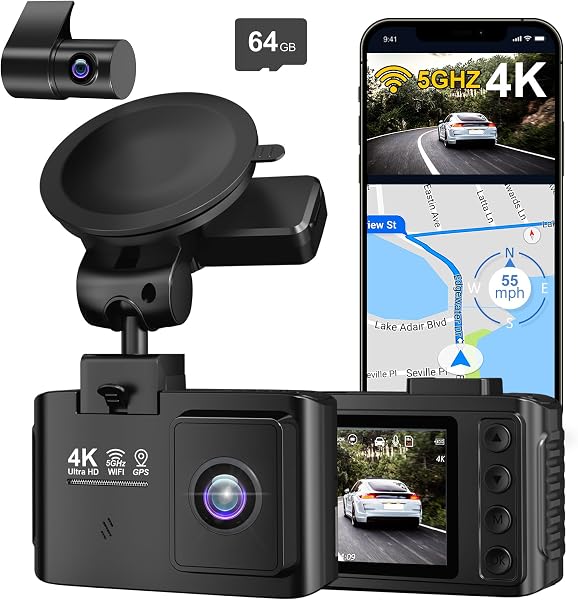
galphi 4K Dash Cam Front, 5GHz WiFi
A reliable pick for galphi 4K Dash Cam Front, selected based on this article's guidance.
Best Practices & Pro Tips
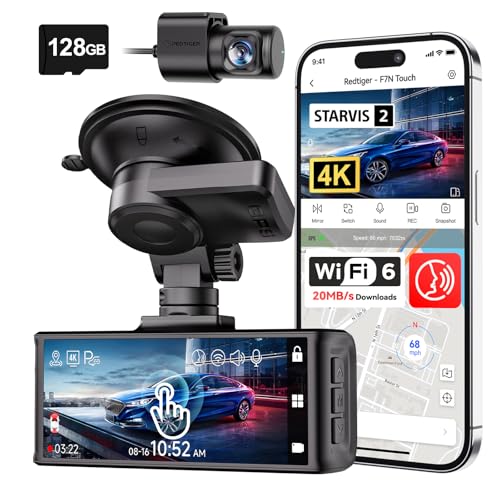
Maintaining Data Integrity
When operating without an app, you are responsible for the health of your media. Regularly check that your microSD card is not "read-only" and perform a manual format every 30 to 60 days to clear out fragmented data, especially if you drive daily.
Hardware Reliability
Ensure that your power cable is securely connected. Without an app to notify you of connection drops, the only way to know if your camera is functioning is by observing the recording LED indicators on the face of the device.
Troubleshooting & Common Pitfalls

Solving Connectivity and Recording Issues
If the device fails to start recording, verify that the cigarette lighter adapter is providing power. Often, a blown fuse in the vehicle's power port is mistaken for a faulty dash cam. For those interested in deeper security, see Can baby car cameras see in the dark: Safe Nighttime Travel for insights on IR and low-light performance troubleshooting.
Common Error States
Frequently Asked Questions
Can I change settings without the app?
A: Yes, all primary configurations including date, resolution, and loop interval can be accessed via the camera's built-in LCD screen and physical buttons.
Will the camera record without an SD card?
A: No, dash cams require a high-speed microSD card to store footage; the internal memory is usually only for system operations.
How do I view videos on a PC?
A: Use a standard microSD card reader connected to your computer; most dash cams use standard MP4 or MOV file formats readable by any modern media player.
Do I lose data if the battery dies?
A: No, the loop recording mechanism writes data to the card in real-time, meaning your current file is saved before the power cut.
Why is my screen turning off?
A: This is usually a "Screen Saver" setting designed to prevent driver distraction; it does not affect the recording process.
How do I lock a file manually?
A: Press the menu or emergency button (often marked with a yellow or red icon) during active recording to protect the current file.
Can I use a larger SD card?
A: Yes, check the manual for the maximum supported capacity, as some older models cap out at 32GB or 64GB.
Is it safe to leave the cam in extreme heat?
A: Always try to detach the unit during extreme heat waves, as internal batteries and SD cards are sensitive to prolonged high temperatures.
Key Takeaways
- 1 Use high-endurance SD cards to ensure reliability during manual use.
- 2 Master the onboard menu using the OK and navigation buttons for full control.
- 3 Loop recording is the default safety net; manual locking is for specific incidents.
- 4 Always verify date/time settings manually after any power-loss event.
- 5 Use a computer-based card reader for the safest file management and storage.
- 6 Regularly format your SD card every 30-60 days to prevent file fragmentation.
- 7 Monitor the recording LED to verify status when you are not using an app.
Conclusion
Managing your dash cam without a smartphone app is a straightforward process that grants you full control over your privacy and data. By relying on onboard menus and standard PC file management, you ensure that your device remains a reliable witness on the road.
If you have further questions on specialized setups, consider reviewing Wired vs Wireless Baby Car Camera: Which One to Choose? (2025 Guide) for more information on connection reliability.
Consistent maintenance and manual verification ensure your dash cam is always ready when you need it most.