Finding which dash cams can be used independently without apps is a priority for many drivers who want reliable security without complex smartphone pairing. This guide provides 10 tips to ensure you select and manage a device that functions entirely through its own onboard interface.
By bypassing mobile applications, you avoid connectivity issues, privacy concerns, and software update dependencies. Following these steps helps you maintain a seamless, hardware-focused recording experience.
Tip 1: Prioritize Built-in LCD Screens

Why Integrated Displays Matter
The most important factor in finding which dash cams can be used independently without apps is the presence of an integrated LCD display. Cameras with screens allow you to frame your shots and view recorded footage directly on the windshield unit.
Selecting the Right Screen Size
Look for a screen size of at least 2 inches to ensure menu text and video files remain legible. An onboard monitor eliminates the need for a secondary device to confirm your camera is properly aimed.
Tip 2: Test Physical Button Navigation

Navigating Without a Touch Interface
If you prefer a device that operates without apps, ensure it has intuitive physical buttons for navigation. Learning how to move through menus is vital, especially when Do dash cams record when the car is off? Everything You Need to Know for 24/7 Security is a concern.
Tactile Feedback Benefits
Physical buttons provide immediate tactile feedback that touchscreens often lack in cold weather. Choose models with clearly marked "Menu," "OK," and "Lock" buttons to streamline your workflow.
Tip 3: Verify SD Card Management

Direct Access to Data
Efficiently managing your SD card directly through the camera's file browser is essential for app-free operation. Ensure your chosen dash cam allows for quick formatting and file locking through the settings menu.
Automating File Maintenance
Pro Tip: Regularly format your memory card through the device settings every 30 days to prevent file corruption without needing a computer or mobile sync.
The Importance of Card Quality
Always use a high-endurance SD card specifically designed for dash cam write cycles. This ensures your device keeps recording reliably without needing an app to check status lights or connectivity errors.
Tip 4: Check Firmware Update Ease

Updating via Memory Card
When investigating which dash cams can be used independently without apps, confirm the manufacturer supports firmware updates via direct SD card upload. This method replaces the typical OTA (Over-the-Air) app update path.
Simplifying the Technical Process
Recommended Equipment & Solution

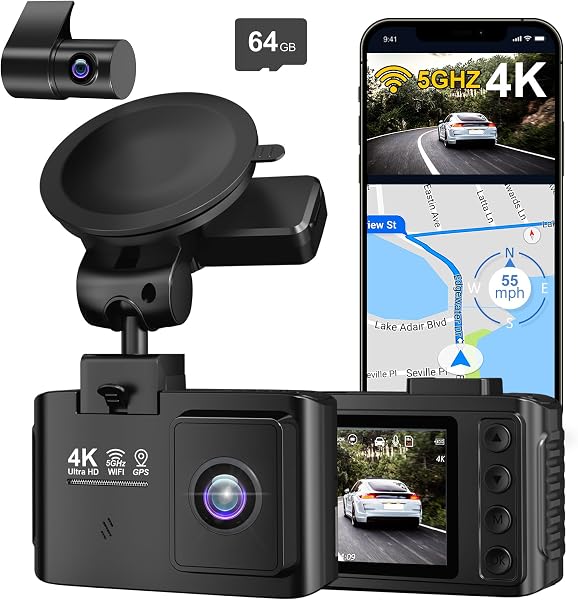
Sherum Dash Cam, Shirem Dash Cam Front
A reliable pick for Sherum Dash Cam, Shirem Dash, selected based on this article's guidance.
Tip 5: Confirm Parking Mode Features
Autonomous Security Settings
Many drivers want to know if their device can handle security while parked without a constant app connection. You can find more info on these capabilities in our guide on 5 Best Spare Dash Cam Battery Options for Long-Lasting Parking Mode.
Configuring Motion Sensors
Ensure your dash cam has hardware-level G-sensor settings. These allow the camera to lock files independently when an impact is detected, even if no Wi-Fi or Bluetooth app is active.
Tip 6: Evaluate Menu Accessibility
Hierarchical Menu Structure
The best devices have a "flat" menu structure, meaning you don't have to click through ten screens to change exposure or resolution. User-friendly hardware makes the process of using the camera independent of mobile apps much more efficient.
Language and Interface Clarity
Warning: Avoid generic, unbranded budget cameras, as their internal menus are often poorly translated and difficult to navigate without app-based support or guides.
| Feature | App-Required Cam | Independent Cam |
|---|---|---|
| Setup | Smartphone Required | Onboard Menu |
| Updates | OTA Wi-Fi | SD Card Transfer |
| Playback | Mobile Screen | LCD Screen |
Tip 7: Understand Playback Convenience
Built-in Video Player
A true independent dash cam allows you to playback recorded video on the device screen itself. This is critical for reviewing a minor incident immediately at the scene of an accident without relying on a smartphone.
Adjusting Playback Speed
Check if the device allows frame-by-frame playback on the hardware display. Having this capability ensures you have evidence on hand the moment you need it.
Tip 8: Assess Power Configuration
Hardwiring vs. Cigarette Lighter
To use your camera independently, choose a power method that is consistent. Refer to our advice on How Does Baby Car Camera Work? Top 5 Systems for 2026 Reviewed to see how professional hardwiring provides steady, hands-off power.
Voltage Monitoring
If you use a hardwire kit, ensure the camera has a low-voltage cutoff feature. This allows the system to manage its power usage independently, so it never drains your car battery while you are away.
Tip 9: Choose Plug-and-Play Units
Selecting Simple Hardware
Which dash cams can be used independently without apps? Often, it is the ones designed as "plug-and-play" systems. These devices come pre-configured for standard recording cycles the moment they receive power.
Default Configuration Advantages
Success Tip: Many high-quality dash cams are set to default to "Loop Recording," which means they start and stop automatically when you turn the ignition, requiring zero user intervention.
Tip 10: Review Storage Cycle Settings
Managing Loop Duration
Check your storage settings to ensure the loop duration (e.g., 3-minute clips) fits your needs. Setting this correctly ensures your memory card never fills up, effectively automating the camera lifecycle.
Date and Time Synchronization
Since you are not using an app to sync time via your phone, ensure you manually set the date and time in the menu. This ensures your video evidence remains legally viable in the event of an insurance claim.
Common Mistakes to Avoid
Ignoring Firmware: Failing to check the manufacturer's site for updates on a screen-only unit can lead to bugs that you cannot patch through an app.
Ignoring Loop Settings: If you don't format your SD card occasionally, the camera will stop recording once the storage limit is reached.
Poor Placement: Mounting the camera too high makes it difficult to see the LCD screen, which defeats the purpose of choosing an independent device.
Frequently Asked Questions
Can I change my dash cam settings without an app?
A: Yes, most mid-to-high-end dash cams come with a physical screen and buttons that allow you to change all resolution, loop, and security settings manually.
Is an app required for parking mode?
A: No, parking mode functions by sensing motion or impacts through the camera's G-sensor, which operates on the device's hardware independently of external networks.
How do I view videos if I don't use an app?
A: You can view video files directly on the dash cam's built-in LCD screen or by inserting the SD card into a computer or card reader.
Are app-free dash cams less reliable?
A: Not necessarily. In fact, they are often more stable because they do not rely on unstable Wi-Fi signals or software compatibility updates from smartphone manufacturers.
How often should I update firmware on these devices?
A: You should check for firmware updates on the manufacturer’s support page every 6 months to ensure compatibility with newer high-capacity SD cards.
Will my dash cam record without an app?
A: Absolutely. Dash cams are designed to record automatically when they receive power, regardless of whether they have been synced to a smartphone.
What is the biggest downside of not using an app?
A: The primary downside is the lack of "Instant Share" features, which allow you to quickly send video clips to social media or email from your phone.
Do all dash cams have internal screens?
A: No, many compact "stealth" dash cams are designed specifically to be used only with an app; check for an LCD before purchasing.
Key Takeaways
- 1 Look for dash cams with built-in LCD screens for the best independent user experience.
- 2 Test button responsiveness to ensure you can navigate menus without external aids.
- 3 Choose models that allow manual firmware updates via SD card formatting.
- 4 Regularly manage your SD card directly through the unit's settings.
- 5 Confirm that parking mode triggers are G-sensor based, not app-dependent.
- 6 Use a high-endurance SD card to prevent data corruption.
- 7 Always double-check date and time settings periodically to ensure valid evidence.
Conclusion
Selecting a dash cam that functions independently offers a simplified, reliable, and private alternative to app-dependent hardware. By focusing on models with clear LCD displays, intuitive physical buttons, and manual update capabilities, you can build a robust security system for your vehicle.
Whether you are setting up Baby Car Camera Mounting Tips: Secure Setup Guide 2026 or upgrading your primary front-facing camera, hardware-first devices provide the consistency many drivers prefer.
Take control of your dash cam security by mastering the onboard settings today.