Understanding how to set up dash cam date and time is a critical, yet often overlooked, step for ensuring your vehicle's recorded footage remains valid for insurance or legal claims.
In this illustrative scenario, we explore the journey of a typical driver who discovers that incorrect metadata on their dash cam renders their saved clips difficult to verify during an insurance inquiry. By walking through their troubleshooting process, you will gain a clear, actionable guide on maintaining accurate device settings.
This guide breaks down the common pitfalls associated with internal clocks, the methods used to synchronize them, and how to maintain these settings long-term.
- Identifying the sync failure: Why timestamps drift.
- The configuration approach: Manual vs. automated methods.
- The result: Improved file organization and legal clarity.
- Lessons learned: Preventive maintenance strategies.
- Broader applicability: Adapting to different camera models.
The Starting Point: A Common how to set up dash cam date and time Scenario

The Core Challenge of Metadata Integrity
Most users initiate their setup process by simply mounting the device and hitting record. However, as noted in Do dash cams record when the car is off? Everything You Need to Know for 24/7 Security, power management and clock retention are closely linked. If a device loses power repeatedly without a secondary power source or internal battery check, the date and time often reset to the factory default, leading to "file collision" when the camera overwrites older footage.
Why the Default Approach Often Falls Short
Many drivers assume the dash cam pulls time automatically from the GPS signal. While true for high-end models, standard cameras require manual synchronization. Relying on default settings without verifying the initial setup frequently leads to inaccurate time-stamping, which can be detrimental if you need to provide evidence of an incident.
The Approach & Method

Step-by-Step Synchronization Logic
Accessing System Menus
The driver navigated to the 'System Settings' via the dash cam's physical interface or paired mobile application to locate the 'Date/Time' configuration tab.
Insight: Physical buttons are often more reliable than app-based syncs if you are experiencing intermittent Bluetooth or Wi-Fi connectivity issues.
GPS Time Synchronization
The device was moved to an open area to acquire a strong GPS signal. This ensures the unit receives an accurate NMEA string containing the coordinated universal time (UTC).
Insight: Ensure your local time zone (e.g., GMT-5) is manually adjusted, as GPS provides UTC regardless of your location.
Verification and Power Test
The driver performed a 'power cycle'—turning the ignition off and on—to confirm the CMOS battery successfully retained the settings.
Insight: If settings are lost after one hour, it indicates a failing internal capacitor or battery, requiring a hardware fix or replacement.
Results & Outcome Analysis
Comparing Pre-Configuration and Post-Configuration States
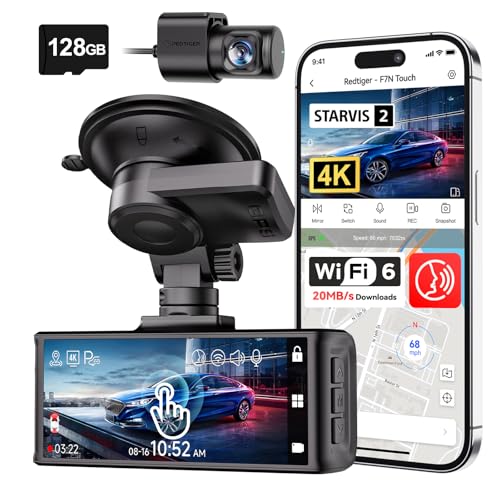
Following the structured approach, the user experienced a significant shift in data reliability. Previously, the camera generated files with generic timestamps (e.g., 2020-01-01), making it impossible to find specific clips after an event occurred. After syncing, files were indexed accurately, facilitating faster retrieval.
| Metric | Before Approach | After Approach |
|---|---|---|
| File Indexing | Erratic/Resetting | Consistent/Sequential |
| Troubleshooting | Frequent daily resets | Rare, annual re-syncs |
| Legal Readiness | Low (evidence unreliable) | High (verifiable metadata) |
Lessons Learned

Key Takeaways for Future Maintenance
The primary realization in this scenario was that technology is only as good as its configuration. Frequent re-checking of system logs is a small price to pay for the assurance that evidence is admissible.
Does This Apply to Your Situation?

Matching Your Hardware to the Process
This case study is highly applicable if you own a mid-to-high-tier camera with GPS capabilities. If you are using a more basic model without GPS, the manual configuration steps remain the same, though you will need to rely on external time-tracking methods rather than satellites.
When Your Situation Differs
Drivers using older hardwired systems may encounter different power-draw issues. If your camera continues to reset despite following these steps, you may need to consult 5 Best Spare Dash Cam Battery Options for Long-Lasting Parking Mode to resolve potential underlying power instability. Please note that individual device behavior varies, and this scenario is intended to serve as a general framework rather than a universal repair manual.
Frequently Asked Questions
Why does my dash cam date keep resetting?
A: This is typically caused by a depleted internal backup battery or capacitor that can no longer hold the clock settings when the main power is disconnected.
Do I need to manually update the time if I have GPS?
A: Usually, no, as the GPS signal provides a universal time reference, though you must still manually set your specific time zone.
Will incorrect time on a dash cam void my warranty?
A: No, it will not void the hardware warranty, but it may cause issues if you attempt to use the footage for insurance claims.
How often should I check the date settings?
A: It is best practice to verify your dash cam settings once every few months, or immediately after a firmware update.
Does the SD card impact the time settings?
A: While the card doesn't control the time, a failing card can lead to corrupt files that prevent the camera from saving the updated timestamp metadata.
Can I set the date using my phone app?
A: Most modern dash cams allow you to sync the time automatically from your smartphone clock via the manufacturer's dedicated mobile application.
What happens if I cannot find the time settings menu?
A: Check your user manual, as some manufacturers hide these settings under 'Advanced' or 'Setup' menus to prevent accidental changes.
Is the time shown on the video proof of accuracy?
A: The timestamp on the video is only as accurate as the settings configured in the device; it acts as a record but is not necessarily a definitive synchronization with real-world time.
Key Takeaways
- 1 Accurate timestamps are essential for insurance and legal verification.
- 2 GPS-enabled cameras require manual time zone configuration.
- 3 Firmware updates frequently reset internal device clocks.
- 4 Regular power-cycling helps identify failing internal capacitors.
- 5 Always perform a manual sync after Daylight Savings time shifts.
- 6 Mobile apps provide the fastest route to clock synchronization.
- 7 Consistent metadata prevents file overwriting and data loss.
Conclusion
Setting up your dash cam's date and time is a foundational requirement for responsible vehicle ownership. By applying the systematic approach outlined in this guide, you move from reactive troubleshooting to a proactive, reliable monitoring state.
Remember that consistent metadata is your primary defense when providing evidence. For further reading, explore our resources on maintaining Baby Car Camera Mounting Tips: Secure Setup Guide 2026 to ensure all your cabin and road-facing cameras are fully optimized.
Take ten minutes today to verify your device settings; it is an investment in your long-term legal security on the road.