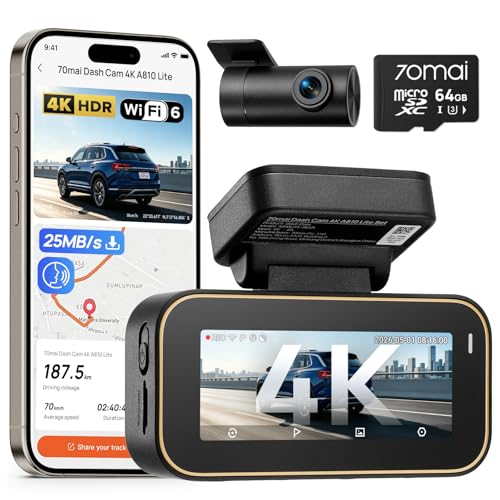
Knowing how to upload dashcam footage is a vital skill for every driver, ensuring that you can preserve critical evidence or share memorable road trip moments effectively.
This guide is designed for both beginners who are new to digital file management and experienced users looking for more efficient workflows. We assume you have access to a computer and your dashcam’s memory card, regardless of your specific camera model.
By the end of this article, you will be able to extract files, organize your archives, and secure your footage for long-term storage, keeping your evidence safe even when you are not in your vehicle.
- Understanding file systems and formats.
- Safe removal of SD cards to prevent data corruption.
- Hardware requirements for smooth transfers.
- Effective software tools for viewing and saving files.
- Cloud storage versus local backup strategies.
Overview & Prerequisites

Required Tools and Equipment
To successfully upload your recordings, you will need a reliable SD card reader, a computer with adequate storage space, and your dashcam’s proprietary software (if required by the manufacturer). Most modern cameras store files in standard MP4 format, making them compatible with almost all media players.
Target Audience Requirements
This guide is written for individuals comfortable with basic file explorer navigation on Windows or macOS. We recommend having at least 10GB of free space on your hard drive before beginning the transfer process. For those curious about the technology behind their device, consider reading how systems function to better understand your specific hardware limitations.
Always format your SD card inside the dashcam after transferring files to ensure the file system remains healthy and error-free.
Core Concepts & Fundamentals

Understanding Data Structure
Dashcams typically use a circular recording loop. This means the device constantly overwrites the oldest files to save space. Understanding this is crucial because if you wait too long after an incident, the desired footage may be automatically overwritten.
File System Compatibility
Most dashcams format memory cards to FAT32 or exFAT. While Windows handles these natively, macOS users may occasionally need a third-party driver if the card is older or specialized. Keeping your spare battery power in mind is also helpful, as losing power during a transfer can cause file corruption.
| Action | Correct Approach | Incorrect Approach |
|---|---|---|
| Extraction | Power off camera before card removal | Pulling card while recording |
| Storage | Cloud + Local Backup | Storing only on the SD card |
Step-by-Step Execution Guide
Preparation Phase
Before moving data, ensure the dashcam is turned off. Removing the card while the camera is writing data is the primary cause of file loss. Locate the SD card slot on your device and gently press to eject the card.
Execution Phase
Recommended Equipment & Solution
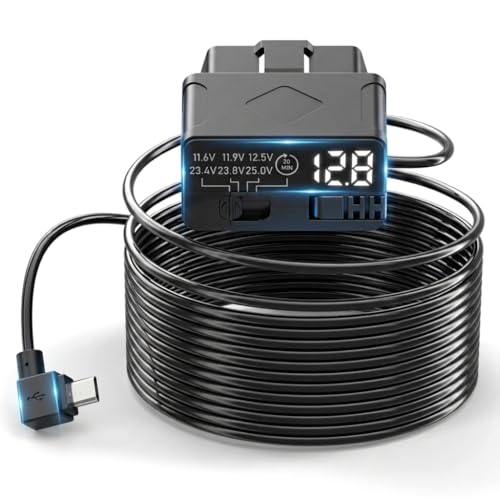
OBD2 to Micro Dash Cam Power Cable
A reliable pick for OBD2 to Micro Dash Cam, selected based on this article's guidance.
Best Practices & Pro Tips

Maintaining Data Integrity
Regularly cleaning your SD card is essential. Just like computers, memory cards slow down when over-filled, which can lead to dropped frames. Set a monthly calendar reminder to export important clips and perform a deep format of the card.
Organized Archiving
Create a directory structure on your backup drive (e.g., Year/Month/Day). This makes retrieving specific footage much faster if you ever need to provide evidence to insurance or legal authorities.
Troubleshooting & Common Pitfalls
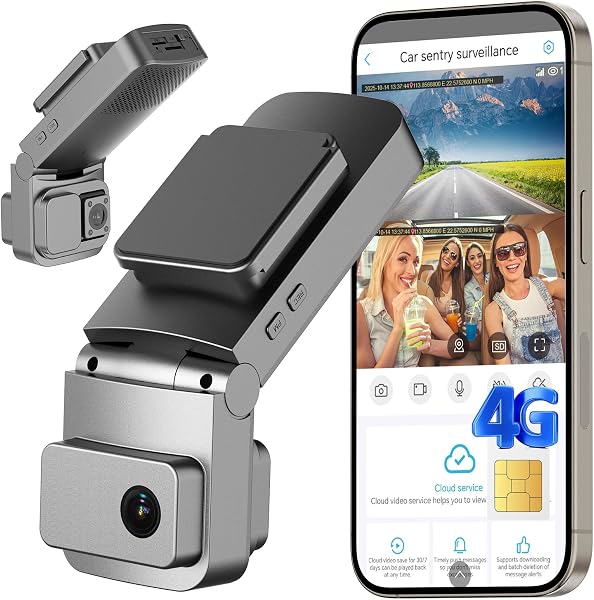
Resolving Read Errors
If your computer cannot "see" the SD card, first try a different USB port or a different card reader. Often, the issue is not the card itself but the interface between the reader and the machine.
Handling Corrupt Files
If a file won't open, it may have been corrupted due to a power interruption. Sometimes, recovery software can restore these segments, but it is better to prevent the issue by keeping the power supply stable.
Frequently Asked Questions
Can I upload footage directly from my phone?
A: Yes, if your dashcam supports Wi-Fi or Bluetooth, you can use the manufacturer's mobile app to download videos to your smartphone gallery.
How long should I keep old footage?
A: It is generally recommended to keep event-related footage for at least 1-3 years depending on local laws, while routine driving footage can be deleted monthly.
Why is my footage missing?
A: Footage may be missing if the G-sensor sensitivity was too low to lock the file, or if the loop recording cycle overwrote the segment.
Should I delete files directly from the SD card?
A: It is better to format the card within the dashcam menu rather than deleting individual files to prevent file system fragmentation.
What if the file is in a proprietary format?
A: Most cameras include a "Converter" tool in their software. If not, try VLC media player, which supports a vast majority of video codecs.
Can I use any SD card?
A: Always use a "High Endurance" card specifically designed for dashcams to prevent frequent write errors and hardware failure.
Does uploading footage affect my dashcam warranty?
A: No, routine file maintenance is part of normal device ownership and will not void your warranty.
Is cloud storage better than local storage?
A: Cloud storage offers superior protection against physical theft or damage, though it usually requires a subscription and a stable Wi-Fi connection.
Key Takeaways
- 1 Always power down the unit before removing memory media.
- 2 Use "High Endurance" SD cards to avoid data loss.
- 3 Copy files, don't move them, until verification is complete.
- 4 Format the SD card regularly within the camera settings.
- 5 Organize your backups by date to ensure quick access.
- 6 Use VLC player if you encounter common playback codec issues.
- 7 Follow the 3-2-1 backup rule: two local copies, one cloud backup.
Conclusion
Learning how to upload dashcam footage is a critical part of vehicle maintenance and personal security. By consistently following these steps, you ensure that your recordings remain safe and accessible when you need them most.
Remember that consistent backups are the best defense against hardware failure or accidental overwriting. If you have questions about your specific model, refer to the manufacturer manual or search our site for more detailed system reviews.
Stay safe on the road, and keep your documentation organized for total peace of mind.