Encountering a dashcam offline status is a common frustration for drivers relying on cloud-connected security features to protect their vehicles.
This guide is designed for car owners and fleet managers who need a structured approach to restoring network connectivity and ensuring reliable recording performance. We assume a basic familiarity with vehicle electronics and home Wi-Fi networking.
By the end of this guide, you will be able to diagnose common causes of connectivity failure, perform a factory reset safely, and optimize your hardware for consistent uptime.
- Understanding the hierarchy of network connectivity.
- Methods for testing power delivery and battery integrity.
- Step-by-step resolution for cloud synchronization errors.
- Identifying firmware-related connection drops.
- When to escalate to manufacturer support services.
Overview & Prerequisites

Required Tools and Environment
To effectively address a dashcam offline issue, you should have access to your smartphone with the manufacturer’s companion app, a stable internet connection, and the vehicle’s owner manual. Often, connectivity drops result from external environmental factors or parking mode power constraints that you must audit first.
Target Skill Level
This tutorial is intended for users with intermediate technical comfort. You do not need to be an auto electrician, but you should be prepared to navigate app settings, check fuse boxes, or inspect wiring integrity if basic software troubleshooting fails.
Always verify that your mobile data is turned off while attempting to pair your phone to the camera's local Wi-Fi, as this is the most common cause of initial connection failure.
Core Concepts & Fundamentals

Understanding Connectivity Layers
A modern dashcam operates on two network layers: local direct Wi-Fi (phone to camera) and cloud-based communication (camera to home/hotspot network). If your dashcam is offline in the app, identify which layer has failed. If local Wi-Fi works but the cloud does not, the issue is likely your router or hotspot data plan.
The Impact of Power Cycling
Persistent dashcam offline status often stems from corrupted cache files in the camera's onboard memory. Proper power cycles allow the firmware to re-establish its handshake with external servers. Relying on reliable power accessories ensures that the device maintains consistent communication during standby periods.
| Status | Indication | Root Cause |
|---|---|---|
| Local Offline | No Wi-Fi broadcast | Hardware or power failure |
| Cloud Offline | Connected, no alerts | Network/ISP restriction |
Step-by-Step Execution Guide

Preparation Phase
Start by verifying your power supply. Ensure your camera is not in a low-power "hibernation" state caused by the vehicle's ignition being off.
Execution Phase
Recommended Equipment & Solution

REDTIGER 4K STARVIS 2 Dashcam Front Rear
A reliable pick for REDTIGER 4K STARVIS 2 Dashcam, selected based on this article's guidance.

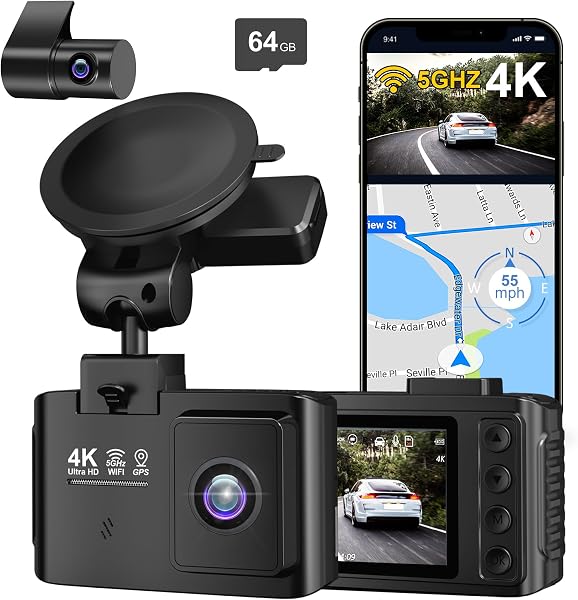
galphi 4K Dash Cam Front, 5GHz WiFi
A reliable pick for galphi 4K Dash Cam Front, selected based on this article's guidance.
Best Practices & Pro Tips
Optimizing for Uptime
To avoid a recurrence of a dashcam offline status, prioritize a hard-wired installation kit over cigarette lighter adapters. Hard-wiring provides constant voltage, allowing the camera to maintain background network checks more effectively.
Managing Network Environments
If you use a vehicle hotspot, set it to 2.4GHz rather than 5GHz. Dashcams generally have smaller internal antennas that perform significantly better on the longer-range 2.4GHz frequency.
Troubleshooting & Common Pitfalls

Identifying Signal Interference
Sometimes the camera is not truly offline but is struggling with signal interference from other vehicle electronics. Ensure the camera is mounted away from GPS modules or radar detectors, as these can conflict with the Wi-Fi transmission.
When to Seek Support
If you have followed all steps and the unit continues to fail, review your wired connection stability or antenna seating. If the device was recently exposed to extreme temperatures, there is a risk of permanent internal component degradation.
Frequently Asked Questions
Why does my camera go offline at night?
A: This often occurs because the power-saving mode triggers when the car’s battery voltage drops below a certain threshold to prevent a dead battery.
Does an offline camera stop recording?
A: In most cases, the dashcam will continue to record locally to the SD card even if it loses cloud connectivity.
How do I know if it's a server issue?
A: Check the manufacturer’s status page or social media; if others are complaining, it is likely a server-side outage.
Can a full SD card cause network drops?
A: Yes, if the system cannot find space for new logs, the software may crash, leading to a loss of connectivity.
Should I delete the app and reinstall it?
A: Reinstalling is a last resort, but it is effective at clearing out corrupted local device caches.
Is a weak signal enough to keep it offline?
A: Yes, if the upload speed is insufficient, the camera will fail the "handshake" process with the cloud.
Does extreme heat affect connectivity?
A: Yes, high temperatures can cause thermal throttling of the Wi-Fi chip, resulting in reduced range or total signal loss.
What is a hard reset?
A: A hard reset restores the device to factory defaults, wiping all personalized network and account credentials.
Key Takeaways
- 1 Always verify power status before network settings.
- 2 Differentiate between local Wi-Fi and Cloud connectivity.
- 3 2.4GHz bands offer better penetration than 5GHz bands.
- 4 Keep firmware updated to prevent compatibility conflicts.
- 5 Use high-endurance SD cards to ensure system stability.
- 6 Hard-wired kits provide the best overall reliability.
- 7 Physical interference can often mimic software bugs.
Conclusion
Resolving a dashcam offline status is rarely a single-step fix but rather a process of elimination. By systematically checking your power source, your network environment, and your device firmware, you can isolate the specific failure point and restore your vehicle security.
Maintaining a proactive approach to your camera's health ensures that you are never left without critical footage when an incident occurs. For those looking to upgrade their setup, consider improving your physical mounting to protect against vibrations and connection looseness.
Consistent monitoring of your dashcam connectivity is the hallmark of a secure and prepared driver.