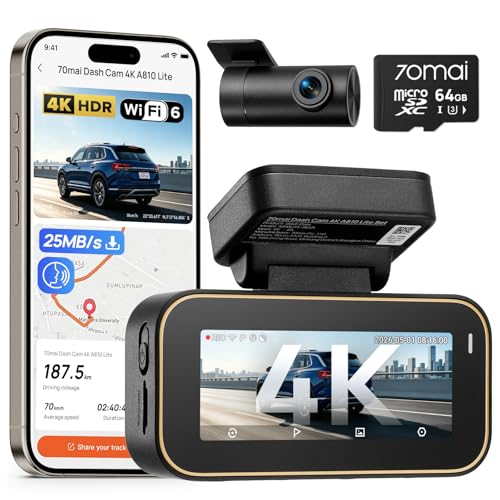
Understanding exactly how long do dashcams record requires a clear grasp of how storage cycles and power management interact within your vehicle.
This guide is designed for car owners and security-conscious drivers who want to move beyond basic operation and master their dash cam's technical capabilities. We assume a fundamental familiarity with basic electronics but provide the necessary depth to optimize any system.
By the end of this guide, you will be able to calculate your exact recording window based on your specific camera hardware, storage media, and power configuration.
- Factors influencing loop recording duration
- How resolution and bitrate impact storage
- The distinction between driving and parking modes
- Calculating file size vs. SD card capacity
- Managing power constraints for extended coverage
Overview & Prerequisites
Required Knowledge Base
To determine how long do dashcams record, you must first acknowledge that most modern cameras utilize a "loop recording" architecture. This means the device does not have a single fixed duration; instead, it overwrites the oldest footage once the storage card is full. Familiarity with how dash cams record when the car is off is essential for understanding total system uptime.
Tools for Success
Before beginning your configuration, ensure you have a high-endurance microSD card (U3 rated is recommended) and a stable power source. If you are aiming for long-duration parking surveillance, you may also need to research spare dash cam battery options to prevent vehicle battery drain.
Always verify your dash cam's maximum supported SD card capacity. Using a card larger than the manufacturer's recommendation can lead to initialization errors.
Core Concepts & Fundamentals

The Math of Loop Recording
The total recording time is primarily a function of two variables: storage capacity and bitrate. Higher resolution (e.g., 4K vs. 1080p) requires higher bitrates, which consume storage space more aggressively. Understanding these limits is critical to ensuring you have enough coverage to capture an incident before the system overwrites the file.
Continuous vs. Event-Based Logic
Systems often toggle between high-bitrate continuous recording and low-bitrate "parking mode" (or timelapse). Knowing how your specific unit handles these transitions is vital. A well-integrated system will manage these transitions automatically to maximize your recording window.
| Feature | Correct Mental Model | Incorrect Mental Model |
|---|---|---|
| Looping | Automatic overwriting is a feature, not a failure. | The camera "runs out of space" and stops. |
| Resolution | Higher pixels = faster storage consumption. | High resolution always equals better security. |
| Parking Mode | Low-bitrate or trigger-based capture. | Constant 4K recording while parked. |
Step-by-Step Execution Guide
Preparation and Initialization
Before installing, format your SD card inside the dash cam itself to ensure the file system (usually exFAT or FAT32) is optimized for the device's specific needs.
Refining Recording Duration
Access your dash cam's "Record Duration" or "Loop Segment" settings. Set segments to 3 or 5 minutes for easier file management.
Adjust the recording bitrate in the video settings. Lowering the bitrate can nearly double your recording capacity on the same card.
Configure Parking Mode. Decide between "Buffered" (saves 10 seconds before an event) or "Time Lapse" (low-frame-rate constant recording).
Test the storage cycle. Drive for an hour, then check the file timestamps to confirm the device is rolling over the oldest footage correctly.
Best Practices & Pro Tips
Maintaining System Integrity
Dash cam storage cards are subjected to thousands of write cycles. Pro-level maintenance involves manually formatting your SD card once a month to prevent file system fragmentation and ensure the internal clock remains accurate.
Optimizing for 24/7 Security
Troubleshooting & Common Pitfalls

Identifying Storage Failures
If your dash cam stops recording, the most common culprit is a corrupted card or a locked file folder. Learn to identify the specific indicator light patterns for your camera. We recommend reviewing troubleshooting guides for parking mode if you find gaps in your nighttime coverage.
Fixing Recurring Issues
Frequently Asked Questions
Does resolution affect how long do dashcams record?
A: Yes. 4K video occupies roughly four times the storage space of 1080p, significantly shortening the loop cycle on the same SD card.
Can I force my dash cam to record longer?
A: You can lower the bitrate or resolution settings, or upgrade to a larger capacity SD card (e.g., 256GB or 512GB) if your camera supports it.
Are all SD cards suitable for dash cams?
A: No, you should strictly use "High Endurance" or "Max Endurance" cards, as standard cards are not designed for constant overwriting.
What is a locked file?
A: A locked file is a video segment saved by G-sensor triggers during a collision or impact; these are protected from being overwritten by the loop.
How do I check if my parking mode is working?
A: Check the timestamp on the files recorded while the vehicle was parked; if there are gaps, your camera is likely set to motion-trigger instead of constant recording.
Will my dash cam record forever?
A: No, the storage will always eventually loop, but the device hardware itself can last for many years with proper SD card maintenance.
Does cold weather affect recording length?
A: Very cold temperatures can reduce battery efficiency and, in some cases, cause SD cards to fail or result in writing errors during operation.
Do dual-channel cameras record half as much?
A: Yes, because the storage capacity is shared between front and rear lenses, a dual-channel setup will fill the card twice as fast.
Key Takeaways
- 1 Loop recording is the standard protocol for modern dash cams.
- 2 Storage capacity and bitrate are the two primary factors dictating duration.
- 3 Parking mode requires specific power configurations to function reliably.
- 4 Always use high-endurance microSD cards to prevent data corruption.
- 5 Formatting your card monthly preserves file system health.
- 6 Locked files won't be deleted; manual clearing is occasionally necessary.
- 7 Dual-channel recording significantly reduces the total time stored per card.
Conclusion
Mastering how long your dash cam records is a critical step in ensuring your vehicle's safety. By balancing the trade-offs between resolution, storage capacity, and power usage, you can create a reliable system that meets your specific security needs.
Remember that the best dash cam system is one that requires the least manual intervention. Consistent, high-quality hardware and periodic maintenance will ensure your camera is always ready when you need it most.
Stay informed and keep your recordings secure on every journey.
Review our guide on 24/7 security for more advanced setup tips.