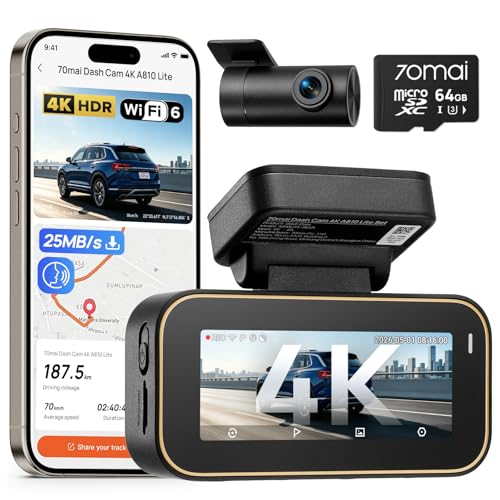
Learning how to save video from dash cam to samsung galaxy phone is a critical skill for any driver who needs immediate access to evidence after an incident or simply wants to share scenic road trip footage.
This guide is designed for Samsung Galaxy users of all technical backgrounds, assuming only that you have a functional dash cam and a compatible smartphone. You do not need to be a mobile technician to successfully manage your footage.
By the end of this instructional deep dive, you will be able to retrieve, transfer, and store your dash cam files directly on your Samsung device, ensuring your digital archives are organized and secure.
- Identifying compatible connection methods for your specific dash cam.
- Understanding file management on Android’s file system.
- Effective use of OTG adapters for direct SD card access.
- Configuring cloud sync for automatic backup of important events.
- Troubleshooting common connectivity and file format errors.
Overview & Prerequisites

Required Equipment and Software
To successfully save footage, you generally need a micro-SD to USB-C adapter, as most dash cams record to micro-SD cards, and Samsung Galaxy phones utilize USB-C ports. Additionally, ensure your phone has sufficient internal storage space or an inserted microSD card to accommodate high-resolution video files.
Target Audience Requirements
This guide assumes you are comfortable using the "My Files" app on your Samsung device. Understanding how dash cams behave in parking mode is also helpful to know when your files are locked vs. standard loop recordings.
Core Concepts & Fundamentals

Direct Transfer vs. Wireless Syncing
The core principle of saving video involves two primary methods: direct hardware connection or wireless data transmission. Wireless transmission via Wi-Fi relies on proprietary apps provided by the camera manufacturer, which offer convenience but may suffer from slower transfer speeds compared to a physical connection.
File System Management
Your Samsung Galaxy treats connected SD cards as external storage. Knowing how the Android file system parses video files—typically in .MP4 or .MOV formats—is essential. You should also consider long-lasting battery options that ensure your device remains powered during long transfer sessions.
| Method | Pros | Cons |
|---|---|---|
| Direct SD/OTG | High speed, reliable | Requires physical hardware |
| Wi-Fi App | No cables needed | Can be unstable/slow |
Step-by-Step Execution Guide

Preparation Phase
Before beginning, stop the dash cam recording and safely eject the micro-SD card. If using the mobile app, ensure your phone's Wi-Fi is toggled to connect directly to the dash cam's local signal rather than your home network.
Execution Phase
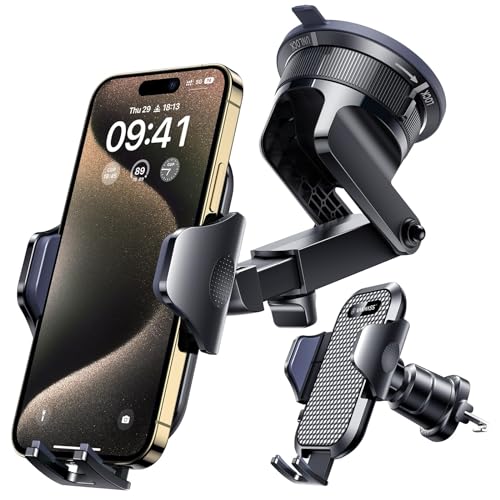
For those looking for better mounting solutions during this process, consider modern mounting tips to keep your hardware stable.
Best Practices & Pro Tips

Maintaining File Integrity
When you learn how to save video from dash cam to samsung galaxy phone, prioritize file structure maintenance. Regularly deleting old, unnecessary files from the card prevents the loop-recording system from overwriting important data unexpectedly.
Optimization Strategies
Troubleshooting & Common Pitfalls

Connectivity Issues
If your phone fails to recognize the SD card, inspect the adapter for debris. Additionally, verify that your Samsung is not in a restricted "Battery Saver" mode, which can sometimes limit external device power delivery.
File Playback Errors
If you encounter hardware issues with the camera itself, you may need to refer back to guides on how camera systems function to ensure your unit is operating correctly.
Frequently Asked Questions
Can I save videos directly from my dash cam to the cloud?
A: Most dash cams require an intermediary device like your smartphone to act as the gateway for cloud uploads. You must first save the file to your Samsung phone before pushing it to Google Drive or other cloud storage.
Why is my Samsung phone not detecting the SD card?
A: Ensure your card reader is OTG compatible. Sometimes, high-capacity SD cards (exFAT format) require a restart of the phone after insertion to be recognized.
Is it better to use an app or a card reader?
A: A card reader is almost always faster and more reliable for large files. Apps are best for quick snapshots or viewing short clips on the go.
Do I need special software to view the videos?
A: Standard MP4 videos usually play in the native Samsung gallery. For proprietary dash cam formats, you may need the manufacturer's specific app or a third-party player like VLC.
How much space do these videos take up?
A: High-definition dash cam footage can occupy 100MB to 500MB per minute depending on the bitrate. Always ensure you have a few gigabytes free before starting a transfer.
Will transferring files delete them from the SD card?
A: No, selecting 'Copy' will create a duplicate on your phone. You must choose 'Move' if you want to clear space on the card, but this is generally discouraged until you have verified the backup.
Does the connection affect the video quality?
A: No, the digital file is copied bit-for-bit. The quality remains identical to the original recorded file regardless of how it is transferred.
Can I edit the videos on my phone?
A: Yes, Samsung’s built-in video editor is capable of trimming clips, adjusting brightness, and adding text to dash cam footage for insurance purposes.
Key Takeaways
- 1 Always prefer OTG card readers for the most stable and fastest transfer speeds.
- 2 Copy, don't move, your files initially to ensure you maintain a master backup on the SD card.
- 3 Check the specific 'Event' folder for critical incident footage that is often hidden.
- 4 Disable mobile data switching on your phone to keep the Wi-Fi connection to the camera alive.
- 5 Keep a dedicated media player app installed to handle various dash cam video codecs.
- 6 Regularly format your SD card within the camera to maintain file system health.
- 7 Use cloud sync for your phone's 'Movies' folder to create an off-device backup of your footage.
Conclusion
Mastering the ability to save footage from your dash cam to your smartphone provides a vital safety net for evidence management. By following the steps outlined, you can reliably secure important clips, ensuring they are accessible whenever they might be needed for insurance or documentation.
As you practice these steps, remember that preparation and regular maintenance are the keys to a stress-free experience. If you are interested in further optimizing your setup, you can learn more about nighttime visibility and other advanced camera features.
Staying prepared today saves you time and stress tomorrow.