Understanding how do you use a car dash cam without WiFi is essential for drivers who want reliable security without the complexity of constant cloud connectivity or mobile app pairing.
This guide is designed for the practical vehicle owner, regardless of your technical experience level. Whether you are using a basic entry-level camera or a professional-grade model, we assume you have basic familiarity with automotive electronics but require a structured approach to offline operation.
By the end of this guide, you will be able to set up your dash cam for autonomous recording, manage your storage files manually, and ensure your footage is accessible for evidence when you need it most, entirely independent of a wireless network.
- Understanding local storage vs. cloud storage
- Selecting the correct high-endurance SD card
- Configuring recording settings via the device interface
- Manual data retrieval and file management
- Verifying system status without an app connection
Overview & Prerequisites

Required Equipment for Offline Dash Cams
To operate a device without WiFi, you must prioritize your storage hardware. Since you cannot offload video to a cloud server, the camera relies exclusively on its onboard microSD card. Ensure you use a high-endurance card specifically rated for dash cams to handle constant rewrite cycles. For more on keeping your system powered while parked, review this guide on do dash cams record when the car is off.
Target Audience and Skill Prerequisites
This guide is intended for drivers who prefer a "set it and forget it" hardware approach. You should be comfortable with physically removing a memory card from a device and inserting it into a computer or card reader. No advanced network engineering skills are required.
Core Concepts & Fundamentals

Understanding Local Loop Recording
The primary mechanic for offline cameras is "Loop Recording." The camera writes files to the card until it is full, at which point it begins overwriting the oldest, non-protected video files. This ensures your camera never stops recording, even when you aren't around to manage the storage.
Manual File Management vs. Automated Syncing
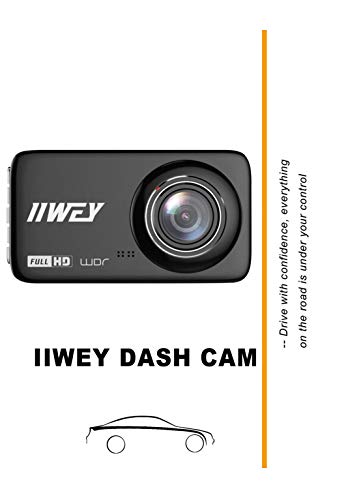
Without WiFi, your workflow shifts from "auto-sync" to "manual extraction." You essentially treat your dash cam like a traditional camcorder. You must verify periodically that the camera is recording by checking the status lights on the device face.
| Feature | WiFi Method | Offline Method |
|---|---|---|
| Data Access | Mobile App | Manual Card Removal |
| Setup | Cloud-based | Physical Button/Menu |
| Updates | OTA (Over-the-Air) | Manual Firmware Update |
Understanding these distinctions is vital. For those curious about the mechanics of different camera systems, check out how does baby car camera work for a broader perspective on camera configurations.
Step-by-Step Execution Guide

Initial Configuration Setup
Before leaving the driveway, verify your local settings on the dash cam screen. Set your date and time stamp accurately, as this is the most critical metadata for evidence. Ensure the resolution is set to your preference—1080p is generally the best balance between quality and storage usage.
Data Retrieval and Maintenance
When you need to review footage, simply power down the unit, eject the card, and insert it into a computer using a USB adapter. You can then copy the files directly to your hard drive for backup and viewing.
Recommended Equipment & Solution

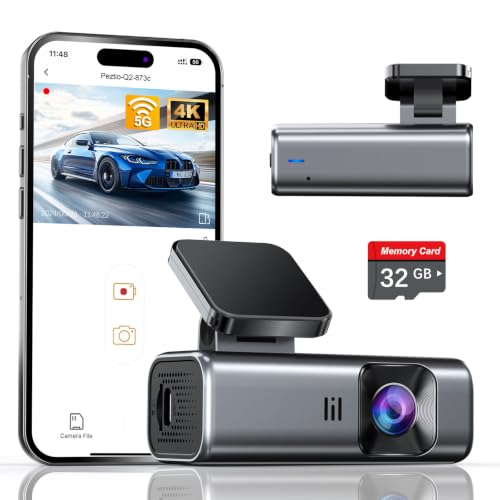
Dash Cam Front and Rear: 4K+2.5K Dual
A reliable pick for Dash Cam Front and Rear, selected based on this article's guidance.

70mai 4K Dash Cam Front and Rear
A reliable pick for 70mai 4K Dash Cam Front, selected based on this article's guidance.
Best Practices & Pro Tips

Maintaining System Health
Treat your SD card as a consumable part; replace it every 12 to 18 months, especially in extreme heat or cold environments. Regularly check the internal date/time settings, as these can drift on some older, non-WiFi models after long periods without power.
Optimizing for Evidence Reliability
Ensure your camera is mounted correctly to capture the full road view. For mounting advice, see our guide on baby car camera mounting tips, which applies equally well to standard dash cams for optimal visibility.
Troubleshooting & Common Pitfalls

Identifying Recording Failures
If your camera screen goes black or displays an "SD Card Error," the most common cause is a full card or a corrupted file system. Always try a manual reformat before assuming the hardware is failing.
Restoring Connectivity and Functionality
If the device seems unresponsive, use the hard reset button (typically a pinhole) to return it to factory settings. Learn more about power management for consistent monitoring in our guide on 5 best spare dash cam battery options.
Frequently Asked Questions
Can I view footage without WiFi?
A: Yes, you can view footage by removing the microSD card and inserting it into a computer or card reader. Most dash cams save files in standard MP4 formats that play on any media player.
How do I know if it's recording?
A: Most dash cams feature a status LED that blinks when the camera is actively writing to the memory card. Check this light periodically to ensure the unit is operational.
Does a non-WiFi camera still lock files during an accident?
A: Yes, the G-Sensor function works independently of WiFi. It detects physical impacts and locks the current file to prevent it from being overwritten by the loop recording.
Do I need to delete files manually?
A: No, dash cams use a "Loop Recording" system. When the card reaches capacity, the camera automatically deletes the oldest unprotected file to make room for new footage.
How do I update the firmware without WiFi?
A: You download the firmware file from the manufacturer's website to your computer, copy it to the root of your SD card, and insert the card into the camera. Upon powering on, the camera will detect the file and update itself.
Is an SD card mandatory for operation?
A: Yes, the camera requires a storage medium to function. Without a microSD card, most dash cams will either trigger an audible alarm or fail to record anything at all.
How often should I check the recordings?
A: It is best practice to check your footage every few months to ensure the camera is capturing clear video and that the SD card has not developed bad sectors.
Can I use a larger SD card to store more footage?
A: Generally yes, provided your dash cam supports the capacity. Check your user manual for the maximum supported card size, which is usually 128GB or 256GB for most modern models.
Key Takeaways
- 1 Loop recording allows the camera to function indefinitely without manual deletion.
- 2 The G-Sensor provides automatic protection for accident footage even without network access.
- 3 Manual data retrieval via SD card reader is a reliable, high-bandwidth method for file transfer.
- 4 Regular firmware updates can be performed by transferring files via the SD card.
- 5 Formatting the SD card periodically is essential for preventing file system corruption.
- 6 Status LEDs are your primary, real-time indicators of camera health.
- 7 High-endurance SD cards are critical for the longevity of offline recording systems.
Conclusion
Operating a dash cam without WiFi is not only possible but often more stable than cloud-dependent systems. By mastering the physical management of your SD card and confirming recording status via indicator lights, you can maintain a robust surveillance system for your vehicle.
This offline approach provides peace of mind through simplicity. You retain full control over your data without concerns regarding server downtime or unstable network connections. Start by verifying your current recording setup today and ensure your hardware is ready to document the road ahead.
Maintaining a simple, offline recording setup ensures your dash cam remains a reliable silent witness for every journey.