Understanding how to record dashcam continuously on loop is essential for ensuring your device captures every moment of your journey without running out of storage space.
This guide is designed for car owners and fleet managers who want to maximize the utility of their dash cam systems. Whether you are a beginner looking to set up your first device or an experienced user troubleshooting recording gaps, this walkthrough assumes basic familiarity with automotive electronics.
By the end of this guide, you will be able to configure your dash cam for seamless operation, manage storage cycles effectively, and troubleshoot common playback issues.
- Understanding loop recording mechanics
- Optimal SD card selection for high-write tasks
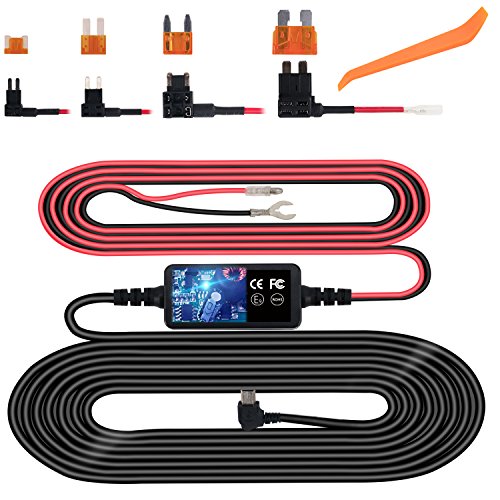
- Configuring power for continuous performance
- Managing file segmentation and storage cycles
- Troubleshooting gaps in recorded footage
Overview & Prerequisites

Required Hardware and Equipment
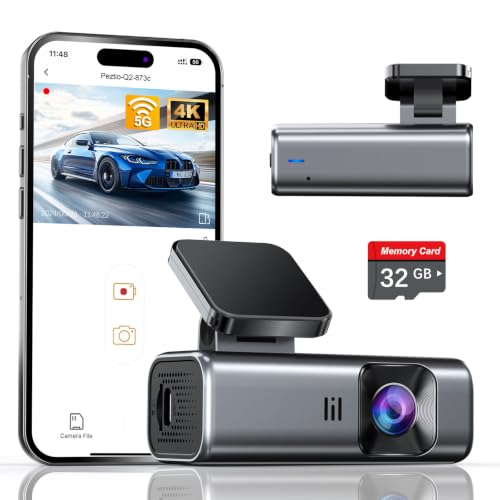
To successfully record in a loop, you require a dash cam that explicitly supports cyclic recording, a high-endurance microSD card, and a stable power source. Using standard consumer-grade memory cards often leads to failure, as they are not designed for the constant "write-erase" cycles inherent in dash cam usage.
System Compatibility Requirements
Before beginning, verify your camera's firmware is updated. You must also ensure your 24/7 security configuration allows for continuous power if you intend to capture video while parked. Without a constant power feed, your recording will only trigger while the ignition is live.
Always format your memory card inside the dash cam rather than on a computer to ensure the partition table matches the camera's specific file system requirements.
Core Concepts & Fundamentals

The Mechanics of Loop Recording
Loop recording operates on a first-in, first-out principle. Once your storage reaches capacity, the camera automatically overwrites the oldest unlocked video file with the newest footage. This allows the device to record indefinitely without requiring manual intervention to clear space.
File Segmentation and Protection
Most cameras divide recordings into 1, 3, or 5-minute segments. Understanding this is vital because "locked" files (often triggered by G-sensor impacts) occupy a portion of your card. If too many files are locked, the loop cycle cannot find enough room to overwrite, potentially stopping your recording entirely.
| Feature | Correct Approach | Incorrect Approach |
|---|---|---|
| SD Card Type | High Endurance (MLC/TLC) | Standard Speed SD |
| Formatting | Monthly inside Dash Cam | Never formatting |
| Loop Setting | Medium (3-min segments) | Very long (15+ min segments) |
For more details on how hardware handles data, review how systems function under various load conditions.
Step-by-Step Execution Guide
Preparation Phase
Begin by inspecting your memory card. Insert the card into your camera and navigate to the System Settings menu. Locate the "Format" or "Initialize" function to clear all existing partitions.
Configuring Loop Settings
Best Practices & Pro Tips

Maintaining Long-Term Reliability
Even with the best settings, memory cards degrade. Practice rotating your cards annually if you drive long hours. Additionally, avoid manually deleting files on your computer, as this can confuse the camera's file index and lead to missing segments.
Pro-Level Refinements
Troubleshooting & Common Pitfalls

Identifying Recording Gaps
If you notice gaps between segments, check if your "Parking Mode" is switching off when it shouldn't. Sometimes the camera transitions between "driving" and "parking" modes, causing a brief pause in the recording process.
Fixing System Failures
For more help with complex setups, see our guide on mounting tips for stable positioning.
Frequently Asked Questions
Does loop recording ever stop?
A: It stops only if the memory card is full of locked files, the SD card is physically damaged, or the power supply is cut. Regular formatting prevents most of these issues.
What is the best segment length?
A: A 3-minute segment is widely considered optimal because it provides a good balance between recording continuity and the ability to find specific events quickly.
Will I lose footage in an accident?
A: No, most modern dash cams automatically lock the current and preceding file during an impact, moving them to a read-only folder so they aren't overwritten by the loop.
Should I delete old videos manually?
A: No, the dash cam handles this automatically. Manually deleting files via a computer can break the file structure and cause the camera to stop recording.
What happens if the power dies during a loop transition?
A: High-quality dash cams have capacitors that provide enough power to finish writing the current file and safely shut down to prevent corruption.
How often should I format the SD card?
A: It is recommended to format the card once a month to clear out fragmented files and maintain the longevity of the storage media.
Why does my camera show a "Full" error?
A: This usually means the emergency folder is too large. Review your G-sensor sensitivity settings to reduce the frequency of unwanted file locks.
Can I use a larger SD card to stop the loop?
A: Larger cards simply mean you capture more hours before the loop restarts; they do not change the fact that the camera will eventually need to overwrite old footage.
Key Takeaways
- 1 Loop recording is the foundation of automatic, set-and-forget dash cam operation.
- 2 Always use "High Endurance" SD cards to handle constant rewrite cycles.
- 3 Format your memory card inside the camera monthly for best stability.
- 4 Keep your G-sensor on a moderate setting to prevent the storage card from filling with locked files.
- 5 Shorter segments (3 minutes) protect you from losing large chunks of data if a file corrupts.
- 6 Do not delete files manually on a computer, as this disrupts the camera's indexing.
- 7 Consistent power is vital for seamless, uninterrupted loop transitions.
Conclusion
Mastering how to record dashcam continuously on loop is the best way to ensure your vehicle is always protected. By following the steps above—specifically choosing the right card, maintaining a proper format schedule, and adjusting your sensitivity—you can rely on your dash cam to handle the heavy lifting of continuous recording.
Once you are comfortable with the loop, you may want to further enhance your system's capabilities for broader peace of mind.
With these fundamentals in place, your dash cam will serve as a reliable, ever-watchful companion on the road.