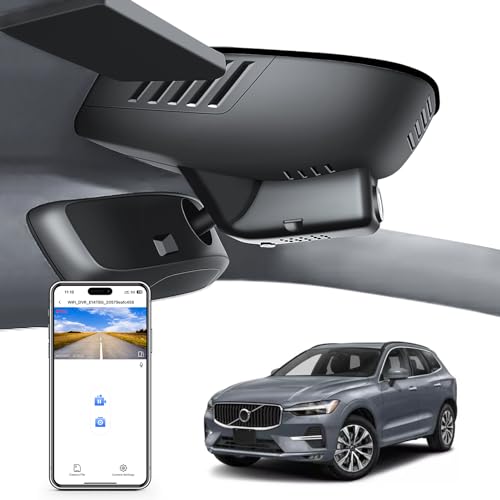
Understanding how to download dash cam footage to phone storage is a vital skill for every modern driver, ensuring you have immediate access to critical video evidence in the event of an incident.
This guide is designed for car owners of all skill levels, from tech-savvy enthusiasts to those who prefer straightforward, non-technical instructions. We assume you have a smartphone and a dash cam that supports wireless connectivity or local storage access.
By the end of this tutorial, you will be able to retrieve, save, and share your driving footage directly from your device, allowing you to manage your car's security data with confidence.
- Checking for Wi-Fi or Bluetooth dash cam compatibility.
- Navigating proprietary manufacturer mobile applications.
- Managing file formats for easy mobile playback.
- Understanding the limitations of wireless file transfer speeds.
- Safely backing up footage to cloud or local storage.
Overview & Prerequisites

What You'll Need for Success
To successfully move files, you generally need the specific companion app recommended by your dash cam manufacturer, a stable connection between your camera and phone, and sufficient free storage space on your mobile device. If your device lacks wireless capabilities, you may require a micro-SD card reader compatible with your phone's port.
Who This Guide Is For
This instructional guide is tailored for drivers who want to keep their vehicle records secure. Whether you are curious about parking mode recordings or simply want to archive a scenic drive, the steps below apply to the vast majority of current dash cam models.
Always ensure your dash cam firmware is up to date before attempting a transfer to avoid connectivity errors during the download process.
Core Concepts & Fundamentals
Understanding Wireless vs. Direct Transfer
Wireless transfer occurs through a localized Wi-Fi signal broadcast by your dash cam, creating a private network between your camera and phone. Direct transfer involves physically removing the SD card and using a card reader, which is often faster but requires more physical handling of the hardware.
Managing Large Video Files
High-definition dash cam footage occupies significant space. Understanding the difference between continuous recording files (looping) and "Event" or "Emergency" files is crucial, as the latter are protected from being overwritten, making them the primary targets for your download efforts.
| Feature | Correct Approach | Incorrect Approach |
|---|---|---|
| Connection | Use Manufacturer App | Bluetooth only (usually too slow) |
| Selection | Filter by Date/Time | Downloading all files at once |
| Storage | Save to Phone Album | Keeping files only in the App |
For more insights on specialized systems, see our guide on how does baby car camera work for related technology concepts.
Step-by-Step Execution Guide
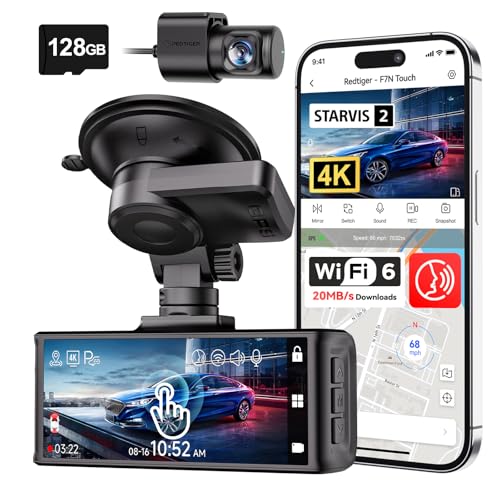
Preparation and App Configuration
Begin by downloading the official application linked to your camera’s brand. Power on your vehicle or ensure the dash cam is receiving power via a secondary source.
The Transfer Procedure
Recommended Equipment & Solution
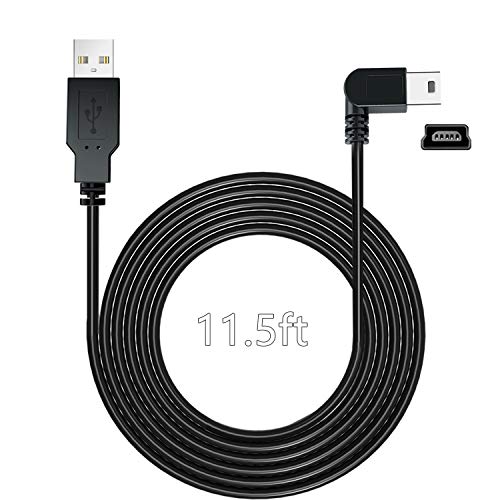
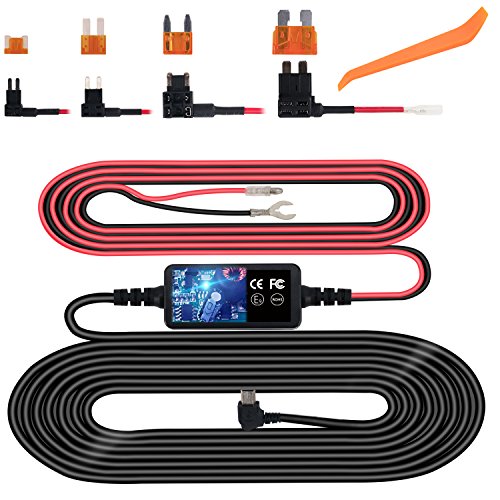
Charging Power Cable for Dash Cam, (11.5
A reliable pick for Charging Power Cable for Dash, selected based on this article's guidance.
Best Practices & Pro Tips

Routine Data Maintenance
Regularly clearing your dash cam's SD card prevents file corruption and ensures you don't run out of storage when an emergency occurs. Use the "Format" feature within the camera settings at least once a quarter.
Optimizing for Evidence
When saving footage, always include the timestamp and GPS data if your model supports it. This is invaluable if you ever need to share the footage with insurance providers or local authorities.
Troubleshooting & Common Pitfalls

Solving Connection Failures
If your phone fails to see the dash cam's Wi-Fi network, ensure your mobile data (cellular) is turned off, as some phones prioritize active internet connections over local Wi-Fi networks. Refer to our guide on wired vs wireless systems to distinguish hardware quirks.
Dealing with Corrupt Files
If a file fails to play, it may be due to a sudden power loss during recording. Try using a dedicated desktop video repair tool if the phone cannot open the file. Common issues include:
Frequently Asked Questions
Can I download footage while driving?
A: No, for safety reasons and technical stability, it is strongly recommended that you only download files when the vehicle is parked and the ignition is in the "On" or "Accessory" position.
Why is the transfer so slow?
A: Wireless transfers use local Wi-Fi, which has limited bandwidth. The file size of high-definition video often exceeds the transfer speed, leading to long wait times.
Do I need the app, or can I plug the card into my phone?
A: Some modern phones support USB-C card readers, allowing for a much faster direct transfer without the need for an app.
Can I edit the video on my phone?
A: Yes, once the video is saved to your phone's gallery, you can use any standard video editing app to trim or crop the footage.
Will downloading files delete them from the camera?
A: Usually, no. The download process creates a copy on your phone; the original remains on the SD card until it is overwritten by the loop-recording feature.
Why can't my phone find the camera's Wi-Fi?
A: Ensure the dash cam is actually in broadcasting mode; sometimes, you must press a button on the physical unit to enable the Wi-Fi signal.
Is it better to use a computer or a phone?
A: A computer is generally more reliable for handling large volumes of data, but a phone is faster for immediate, on-the-spot verification after an accident.
How long are the clips?
A: Most dash cams default to 1, 3, or 5-minute segments to make the files easier to manage and less prone to total loss if a card fails.
Key Takeaways
- 1 Always verify your dash cam supports mobile connectivity before attempting to link.
- 2 Disable cellular data temporarily to prevent your phone from dropping the camera's local Wi-Fi.
- 3 Prioritize saving "Event" files immediately after an incident occurs.
- 4 Keep your phone close to the dash cam throughout the entire transfer process to ensure stability.
- 5 Use a dedicated SD card reader for faster transfers if your dash cam uses older, slower Wi-Fi standards.
- 6 Regularly format your SD card to maintain high-speed recording health.
- 7 Practice your download workflow to ensure you can act quickly when under stress.
Conclusion
Mastering how to download dash cam footage to phone devices empowers you to act decisively if you encounter road issues. By maintaining your equipment and practicing your digital workflow, you transform a complex technical task into a routine, reliable safety habit.
Remember that consistent file management protects your evidence. If you encounter persistent issues with your device, ensure your firmware is updated and your SD card is in good working order.
With these steps, you are now fully equipped to manage your automotive security data with professional-grade efficiency. For further reading, explore our resources on spare dash cam battery options to keep your system powered during critical moments.