Learning How to Transfer Dash Cam Footage: A Complete Guide for Every Device Sizing & Specs Checklist is an essential skill for every vehicle owner, ensuring your critical driving evidence is archived securely and accessible when needed.
This guide is designed for both beginners and tech-savvy users who want to master the workflow of moving high-definition video files from proprietary camera storage to local or cloud-based backups. We assume you have basic familiarity with your computer's file management system.
By the end of this guide, you will be able to identify the correct storage hardware, execute efficient file transfers, and troubleshoot common playback issues across various dash cam models.
- Understanding microSD card class and speed ratings.
- Selecting the right hardware adapters for your PC or Mac.
- Managing file formats for 4K and dual-channel recordings.
- Optimizing transfer speeds to prevent file corruption.
- Establishing a reliable archival workflow.
Overview & Prerequisites

What You'll Need
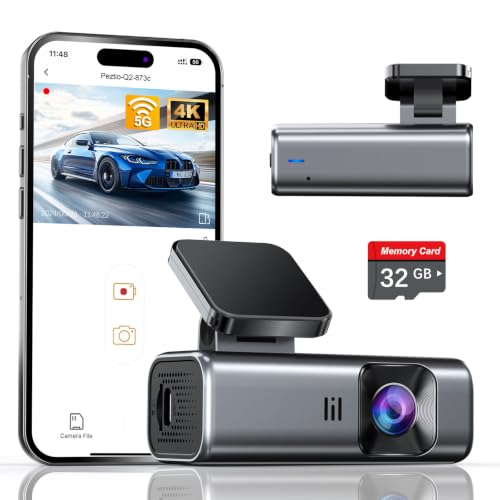
To follow this guide effectively, you need a high-quality microSD card reader (USB 3.0 or higher is recommended for 4K video) and your dash cam's user manual. Verify that your computer has sufficient storage space to hold the high-bitrate files often produced by modern cameras, such as those found in Best Dash Cams 2026 Amazon: Secure Your Vehicle With Precision.
Who This Guide Is For
This tutorial is tailored for drivers who need to extract footage for insurance purposes or routine archival. Whether you are using a basic unit or a high-end system, understanding the fundamental file structure is key to success.
Always eject the microSD card safely from your computer after the transfer is complete to prevent data corruption. Never pull the card while a file is actively being copied.
Core Concepts & Fundamentals

Understanding File Structure
Dash cams organize data into folders, typically separating standard recordings from "event" or "emergency" files. These event files are often protected from automatic overwriting by the loop-recording system, which makes them the highest priority during your transfer process.
The Importance of Bitrate and Specs
High-resolution recording creates large file sizes. You must understand that transfer speed is dictated by your hardware bridge—using an old USB 2.0 adapter to move 4K footage will result in significant wait times and potential system timeouts.
| Correct Mental Model | Incorrect Mental Model |
|---|---|
| Treating the SD card as a temporary buffer | Treating the SD card as permanent storage |
| Using dedicated card readers | Using the camera via micro-USB cable |
| Regularly archiving footage | Only backing up after an incident |
Learn more about potential hardware issues at 7 Common Problems with Best 4K & Dual Dash Cams.
Step-by-Step Execution Guide
Phase 1: Extraction & Mounting
Phase 2: Transfer & Verification
Best Practices & Pro Tips

Maintaining Your Storage Media
To extend the lifespan of your microSD card, perform a full format inside the dash cam settings menu once every few months. This clears out fragmented data that can interfere with continuous loop recording.
Optimizing for 4K
When working with 4K footage, ensure your computer has at least 8GB of RAM and a dedicated graphics processor to handle the high-bitrate playback. Refer to Step-by-Step: How to Setup, Configure & Master Transfer for specific software recommendations.
Troubleshooting & Common Pitfalls

Solving Connectivity Issues
If your computer does not recognize the card, try cleaning the gold contacts on the SD card with a dry, lint-free cloth. For more complex issues, check 7 Common Problems with How to Transfer Dash Cam Footage.
Handling Corrupted Files
In many cases, video files that appear corrupted are actually just using a codec your current player doesn't support. Try using a VLC media player or the native viewer recommended by the camera manufacturer.
Frequently Asked Questions
Why can't I see my dash cam in my computer's file explorer?
A: A: Ensure the SD card is properly seated in the reader. Sometimes the card reader requires a specific driver, or the USB port you are using is faulty.
Is it safe to move files while the dash cam is still in the car?
A: A: It is generally recommended to remove the card for faster and more stable transfers. Directly connecting the camera is often slower due to hardware bottlenecks.
How often should I clear my dash cam SD card?
A: A: Most dash cams manage this automatically via loop recording. However, formatting every 3-6 months helps prevent system errors.
Why does my video look choppy on my computer?
A: A: Your computer might lack the processing power to play high-bitrate 4K footage. Try closing background applications or using a more efficient media player.
What is the best file format for dash cam footage?
A: A: Most cameras record in MP4 or MOV. These are standard and widely compatible with most modern operating systems.
Can I edit dash cam footage directly on the SD card?
A: A: No, you should always copy the files to your computer’s local storage first. Editing directly on the card can cause data corruption.
Do all dash cams use the same type of memory card?
A: A: No, always check your camera's manual. Most use microSD, but the capacity and speed class (e.g., U3, V30) requirements vary.
What if I lose my footage during a transfer?
A: A: Use data recovery software immediately before writing any new data to the card. The sooner you attempt recovery, the higher the chance of success.
Key Takeaways
- 1 Always use a dedicated USB 3.0+ card reader for reliable file extraction.
- 2 Copy files to your local drive before attempting playback or editing.
- 3 Format your memory cards inside the dash cam to avoid file system conflicts.
- 4 Prioritize "Event" folder files as they contain the most critical evidence.
- 5 If video is choppy, upgrade your playback software or local system hardware.
- 6 Regular maintenance (formatting) prevents long-term recording errors.
- 7 Keep a secondary copy of important files in a cloud or external storage location.
Conclusion
Mastering the technical steps to move your dash cam footage ensures that you have control over your data when it matters most. By following this guide, you have moved from basic extraction to implementing professional-grade archival habits.
Remember that the reliability of your dash cam is only as good as your maintenance of its storage medium. Consistent practices—like safe card ejection and periodic formatting—will protect your footage and extend your hardware's lifespan.
Stay prepared and keep your driving evidence secure with these proven archival techniques.
📌 Pillar Resource: Read our complete our How to Transfer Dash Cam Footage: A Complete Guide for Every Device resource for in-depth insights.