Navigating the Common Problems with Best Non WiFi Dash Cam for Guaranteed Privacy and Reliability and Fixes is essential for drivers who prioritize data security and hardware stability over cloud connectivity.
This guide is designed for automotive enthusiasts and everyday commuters who have opted for non-WiFi dash cams to minimize digital footprints. We assume a basic familiarity with vehicle interiors and SD card management, focusing on technical optimization rather than elementary setup.
By the end of this guide, you will be able to perform diagnostic checks, resolve common power or recording failures, and optimize your dash cam hardware for long-term reliability and maximum privacy.
- Identifying SD card corruption indicators
- Troubleshooting power delivery and loop recording
- Optimizing file access without wireless protocols
- Correcting mounting and lens alignment issues
- Maintaining privacy integrity during firmware updates
Overview & Prerequisites

Required Diagnostic Tools
Before addressing technical faults, ensure you have a high-endurance microSD card, a reliable card reader, and a steady power supply. Many issues stem from using generic memory cards that cannot handle the constant write cycles required for loop recording.
Target Audience & Expectations
This guide serves users who value physical control over their recording data. Whether you are following How To Select A Dash Cam: The Ultimate Buyer’s Guide for Peace of Mind, this material bridges the gap between hardware installation and functional longevity.
Always keep a spare, formatted microSD card in your glovebox to instantly verify if a recording failure is due to a faulty card or the camera unit itself.
Core Concepts & Fundamentals

The Architecture of Non-WiFi Privacy
Non-WiFi dash cams operate on a closed-loop system. Because they lack wireless data transmission, they provide inherent protection against remote access. However, this means all management, including file retrieval and firmware updates, must be done manually via physical connection, which is a common point of user frustration.
Mechanical vs. Digital Failures
It is vital to distinguish between a mechanical failure (such as a loose mount or damaged cable) and a digital failure (such as corrupted file systems). Learn more about maintaining your setup in How to record dashcam continuously on loop: The Ultimate Setup Guide.
| Feature | Incorrect Model | Correct Model |
|---|---|---|
| Storage | Using standard consumer SD cards | Using High-Endurance/Dash Cam specific cards |
| Management | Attempting wireless sync | Physical card transfer/direct PC connection |
| Privacy | Granting App Permissions | Managing files through encrypted desktop tools |
Step-by-Step Execution Guide

Preparation and Hardware Check
Before diving into complex fixes, verify your cable integrity and port connectivity. A loose USB connection is often mistaken for a faulty device.
Sequential Troubleshooting Process
Recommended Equipment & Solution

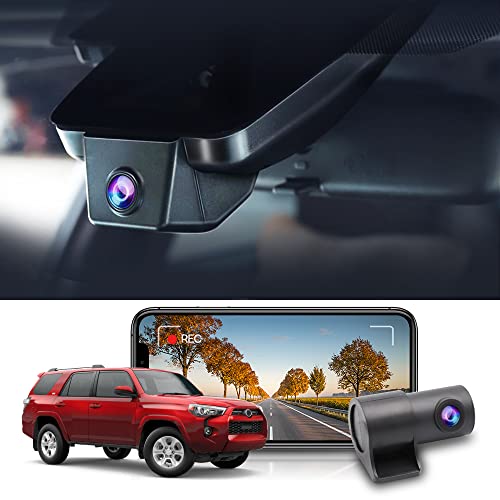
3 Channel 4K Dash Cam with 5GHz
A reliable pick for 3 Channel 4K Dash Cam, selected based on this article's guidance.

Oryzom 4K DashCam Pro Front and Rear
A reliable pick for Oryzom 4K DashCam Pro Front, selected based on this article's guidance.
Best Practices & Pro Tips

Maintaining Data Integrity
To ensure your privacy, adopt a "clean slate" policy where you offload and wipe your footage on a strictly internal network. Never connect your dash cam directly to a public or unsecured PC.
Optimizing for Longevity
Troubleshooting & Common Pitfalls

Diagnostic Patterns
Understanding the difference between a "dead" unit and a configuration error saves significant time. Referencing Best Non WiFi Dash Cam for Guaranteed Privacy and Reliability vs Top Competitors can help distinguish hardware limits.
Critical Failure Modes
Frequently Asked Questions
Why is my dash cam not looping automatically?
A: This is usually caused by the G-sensor sensitivity being too high, which marks every minor bump as an "event" and locks the file, filling the storage. Adjust the sensitivity level in your menu settings.
How can I update my firmware without WiFi?
A: Download the firmware file from the manufacturer’s site to your computer, copy it to the root directory of your formatted SD card, and insert the card into the powered-down camera. Turn the camera on to initiate the automatic update process.
Are high-endurance cards necessary?
A: Yes. Standard SD cards lack the heavy-duty controller chips required to handle constant read/write cycles, leading to premature corruption and data loss.
What if my files are corrupted upon retrieval?
A: Corrupted files are often a sign of a failing power supply or a card that is reaching the end of its life cycle. Attempt a full format of the card in the camera itself, or replace the card entirely.
Why does my date reset periodically?
A: Non-WiFi cameras rely on a small internal battery or supercapacitor to keep the internal clock running. If it resets, the backup power component may be failing.
How do I ensure maximum privacy?
A: Keep your SD card physically secured and use encrypted drives if you store footage long-term. Avoid third-party software that requires internet connectivity to view your files.
Can I use a longer cable for power?
A: While possible, ensure you use a high-quality, shielded USB cable to prevent voltage drop, which can cause the camera to malfunction or fail to boot.
Does tinting affect recording quality?
A: Very dark tinting can reduce the amount of light reaching the sensor, potentially affecting low-light performance. It may also cause internal reflections if the camera is mounted too far from the glass.
Key Takeaways
- 1 Always use high-endurance SD cards to handle continuous loop recording.
- 2 Regularly clear your 'Event' folder to prevent storage saturation.
- 3 Manually format your card every 2-3 months to maintain system health.
- 4 Verify firmware updates only from official manufacturer support pages.
- 5 Shield your device from extreme heat to prevent sensor degradation.
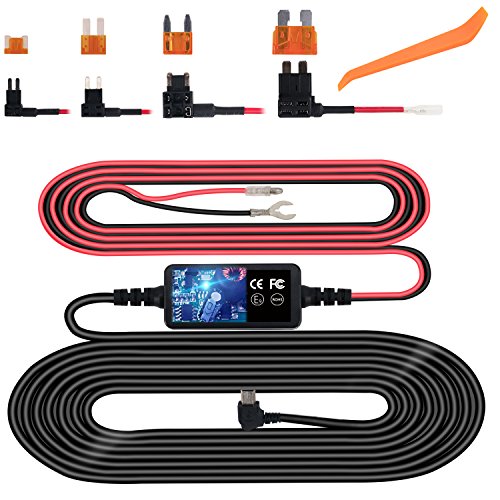
- 6 Use a hardwire kit to ensure stable, graceful power transitions.
- 7 Keep your physical storage media encrypted if the data is highly sensitive.
Conclusion
Maintaining a non-WiFi dash cam is an intentional choice that balances ease of use with the highest possible level of privacy. By adhering to the maintenance schedules and troubleshooting protocols outlined here, you ensure that your device remains a reliable witness on the road.
Consistent physical maintenance is the trade-off for a truly private, secure recording environment. Use this guide as your reference whenever performance deviates from the expected standard.
Mastering these mechanical steps ensures that your focus remains on the road, knowing your privacy is protected and your reliability is guaranteed.
📌 Pillar Resource: Read our complete Best Non WiFi Dash Cam for Guaranteed Privacy and Reliability master hub for in-depth insights.