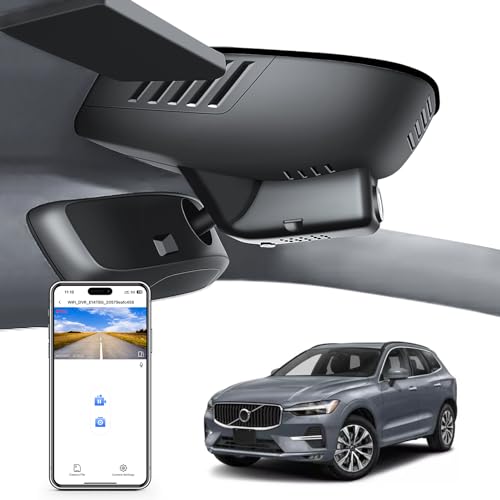
Learning How to Set Up Dash Cam: The Complete Step-by-Step Installation Guide Sizing & Specs Checklist is the first step toward securing your vehicle's safety and establishing clear accountability on the road.
This guide is designed for car owners of all skill levels, from those who have never handled automotive electronics to enthusiasts looking to optimize their setup. Whether you are installing a single front-facing camera or a complex multi-channel system, we assume no prior electrical expertise.
By the end of this guide, you will be able to perform a clean, professional-grade installation, configure your device settings for maximum utility, and troubleshoot common performance issues.
- Understanding camera placement and FOV.
- Managing cable runs for a professional finish.
- Selecting the correct power supply methods.
- Configuring loop recording and storage.
- Testing system integrity before driving.
Overview & Prerequisites

Gathering Your Essential Toolkit
Before beginning, ensure you have the necessary tools: a non-marring trim tool, cable clips, isopropyl alcohol for cleaning the glass, and your dash cam kit. Checking your Best Buy Dash Cam Installation: Your Complete Guide to Professional Setup & Cost Complete Specifications, Sizing & Features ensures you have the right hardware for your specific vehicle make and model.
Defining Your Installation Environment
Work in a well-lit, dry area. Ensure your internal battery is fully charged or that your vehicle's auxiliary power port is functional. Understanding your vehicle's interior layout is crucial for hiding cables effectively.
Core Concepts & Fundamentals

Understanding Optical Positioning
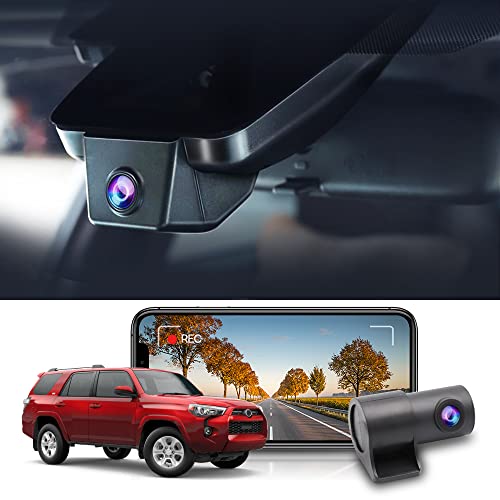
The goal is to capture the widest possible view of the road while minimizing obstruction. Aim for a central position behind the rearview mirror to ensure the camera captures the entire hood area and the horizon, balancing detail and breadth.
Managing Power and Data Integrity
Reliable recording depends on steady power. You should understand the difference between constant power (hardwiring) and ignition-switched power. Additionally, learning about cycle recording, as detailed in What is cycle recording on dashcam? Understanding the Loop Feature, is essential to ensure your storage device doesn't fill up unexpectedly.
| Feature | Correct Approach | Incorrect Approach |
|---|---|---|
| Cable Run | Tucked into headliner/trim | Draped over the dash |
| Lens Position | Centered, level horizon | Angled toward the sky |
| Memory Card | High-endurance SD card | Standard generic SD card |
Step-by-Step Execution Guide

Preparation and Routing
Begin by dry-fitting the camera to determine the ideal angle. Once decided, use your trim tool to gently pry open the edge of the headliner to route the power cable toward the A-pillar.
Finalizing Power and Mounting
Continue routing the cable down the A-pillar door seal and under the glove box, ensuring no cables interfere with airbag deployment zones. Finally, connect the unit to the power source and perform a system test.
Recommended Equipment & Solution

ROVE R2-4K Dual Dash Cam User Guide
A reliable pick for ROVE R2-4K Dual Dash Cam, selected based on this article's guidance.

4K+4K Dash Cam Front and Rear USER
A reliable pick for 4K+4K Dash Cam Front, selected based on this article's guidance.
Best Practices & Pro Tips

Optimizing for Security
Always verify your camera settings for "Parking Mode" if your unit supports it. This feature provides security while the car is unattended, though it requires specific hardwiring kits to function safely.
Maintenance Routines
Test your camera monthly. SD cards are consumable items; check the recordings periodically to ensure the device is still writing data successfully.
Troubleshooting & Common Pitfalls

Addressing Connectivity and Power
If your device fails to power on, check your fuse taps or cigarette lighter adapter connection. For comprehensive solutions, refer to 7 Common Problems with How to Set Up Dash Cam: The Complete Step-by-Step Installation Guide (and Quick Fixes).
Resolving Recording Errors
Erratic reboots are often caused by insufficient power or failing SD cards. If problems persist after a firmware update, check your grounding point for a secure connection.
Frequently Asked Questions
Q: Can I use any SD card?
A: No, you should use high-endurance cards designed for constant write cycles. Standard cards may fail quickly under the heat of a car interior.
Q: Will this drain my car battery?
A: Most dash cams have an auto-cutoff feature. If hardwired, ensure you use a power kit that monitors battery voltage to prevent starting issues.
Q: Where is the best place to mount it?
A: Mount it as high as possible behind the rearview mirror to hide it from your view while maximizing the field of vision.
Q: How often do I need to format the card?
A: It is best practice to format your SD card manually once every few months to maintain optimal file system health.
Q: Does heat damage dash cams?
A: High temperatures can affect internal batteries. Look for "capacitor-based" cameras if you live in extremely hot climates for better durability.
Q: Can I install it myself?
A: Yes, most dash cams are designed for user-friendly installation, though hardwiring may require basic automotive electrical knowledge.
Q: What happens if the memory fills up?
A: Most modern dash cams feature loop recording, which automatically overwrites the oldest, non-protected files.
Q: Is it legal to have a dash cam?
A: In most regions, dash cams are legal, but ensure they do not obstruct your clear view of the road or violate privacy laws regarding audio recording.
Key Takeaways
- 1 Clean surfaces are mandatory for stable mounting.
- 2 Use non-marring tools to protect your interior trim during installation.
- 3 High-endurance SD cards are a requirement, not an optional upgrade.
- 4 Always route cables away from airbag deployment paths.
- 5 Formatting your SD card inside the camera is vital for compatibility.
- 6 Regular maintenance checks prevent data loss.
- 7 Professional, hidden cable runs ensure better aesthetics and safety.
Conclusion
By following these steps, you have successfully mastered the art of installing a dash cam. You now know how to secure the hardware, route the power lines safely, and ensure your device remains reliable through proper memory card management.
Take the time to test your settings on the road today. Regular review of your footage will ensure that your equipment is performing exactly as intended when you need it most.
Proper installation is your best defense against road incidents; drive with confidence knowing you are prepared. For further guidance on specific devices, check out our Garmin Dash Cam X110 Reviews for a closer look at premium hardware.
📌 Pillar Resource: Read our complete our How to Set Up Dash Cam: The Complete Step-by-Step Installation Guide resource for in-depth insights.