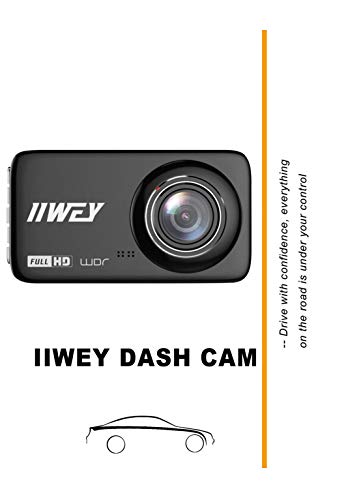
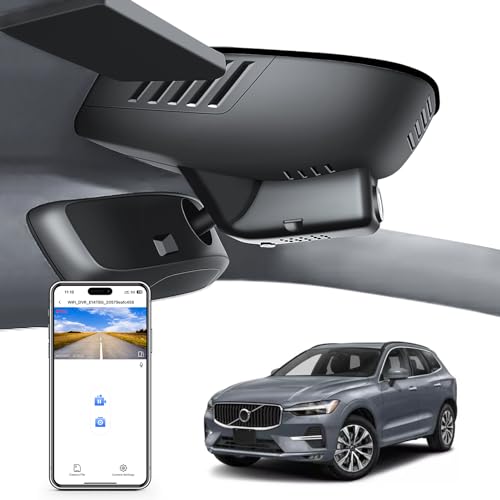
Learning How to Setup & Use How to Transfer Dash Cam Footage: A Complete Guide for Every Device is essential for every driver looking to preserve critical evidence from their road journeys.
This guide is designed for car owners of all skill levels, from those just unboxing their first dash cam to tech-savvy users looking to streamline their file management workflows. We assume you have basic familiarity with your computer or smartphone but provide clear, jargon-free instructions for every step.
By the end of this guide, you will be able to confidently navigate dash cam storage, perform high-speed data transfers, and manage your video library to ensure important recordings are never lost.
- Understanding microSD card file systems.
- Methods for wireless vs. physical data transfer.
- How to properly format cards for longevity.
- Software recommendations for viewing 4K footage.
- Common pitfalls to avoid when handling video files.
Overview & Prerequisites

What You'll Need
To follow this guide effectively, gather a high-speed microSD card reader compatible with your computer, a stable internet connection if using Wi-Fi transfer methods, and the Step-by-Step: How to Setup, Configure & Master Best 4K & Dual Dash Cams manual for specific camera settings.
Who This Guide Is For
This tutorial is intended for anyone who owns a dash cam and needs to extract footage for insurance, personal records, or incident reporting. It covers both modern Wi-Fi enabled cameras and traditional loop-recording models.
Always ensure your microSD card is a "Class 10" or "U3" rated card; slower cards often result in corrupted data or frame drops during critical recordings.
Core Concepts & Fundamentals

Understanding Storage Architecture
Dash cams typically use a "loop recording" structure, where old files are overwritten to conserve space. Knowing how to protect specific "event" clips from this cycle is the most important skill for a dash cam owner. For more insights on non-connected devices, see How do you use a car dash cam without wifi? A Simple Guide to Setup & Access.
Connectivity Protocols
Transferring footage can happen via physical extraction (pulling the card) or wireless streaming (via mobile apps). While Wi-Fi is convenient for short clips, physical extraction is vastly superior for transferring large 4K files or complete incident logs.
| Method | Pros | Cons |
|---|---|---|
| Physical SD Transfer | Fast, reliable, high fidelity | Requires card reader |
| Wi-Fi/App Transfer | Convenient, instant preview | Slow, potential connectivity drops |
Step-by-Step Execution Guide

Preparation Phase
Before beginning, ensure your dash cam is powered off to prevent data corruption during card removal. If you are using a mobile app, ensure your phone's Wi-Fi is disconnected from your home network and linked exclusively to the camera's broadcast SSID.
Execution Phase
Best Practices & Pro Tips

Maintaining File Integrity
Regularly backing up your footage once a month prevents the "loop" feature from accidentally overwriting old footage you may have forgotten about. Keep your firmware updated, as manufacturers often release patches that improve file read/write stability.
Organization Strategies
Adopt a naming convention like YYYY-MM-DD_HHMM_Location. This makes finding specific incidents significantly faster during legal or insurance processes.
Troubleshooting & Common Pitfalls

Solving Connection Issues
If your device is not appearing on your computer, check the card contacts. Sometimes, oxidation or dust can cause a communication error. Use a dry microfiber cloth to clean the metal contacts on the card.
Data Retrieval Problems
For more advanced users, if you encounter persistent read errors, consult the Mangoal Dashcam: The Ultimate Guide to Road Safety and Crystal Clear Recording for device-specific reset instructions. Never force an SD card into a reader that feels too tight.
Frequently Asked Questions
Can I transfer footage directly to my phone?
A: Yes, most modern dash cams come with a dedicated mobile app that connects via Wi-Fi to download clips directly to your phone's photo library.
Why is my dash cam file empty?
A: Check if the camera is currently in 'Loop Recording' mode. If the file is protected, it will be in a separate 'Event' folder rather than the main storage.
How often should I format my SD card?
A: It is recommended to format your SD card every 1 to 3 months to ensure the file allocation table remains clean and efficient.
Will transferring footage stop the camera from recording?
A: Yes, if you remove the SD card, the camera will stop recording. If using the mobile app, it may temporarily pause recording while transferring large files.
What is the best format for dash cam video?
A: Most dash cams use MP4 or MOV formats with H.264 or H.265 compression, which are widely compatible with all major operating systems.
Can I use a larger SD card than recommended?
A: You should stick to the manufacturer’s recommended capacity limit; using a card that is too large can sometimes lead to system instability or freezing.
Why is my footage jittery?
A: This is usually caused by using an SD card that is too slow (e.g., Class 4 or lower). Always use high-endurance cards rated for constant video writing.
Is there a way to password protect the footage?
A: Some advanced models offer encryption features in their settings, but most store files openly on the card for ease of access during emergency situations.
Key Takeaways
- 1 Always power down your device before removing the memory card to prevent file corruption.
- 2 Use physical card extraction over Wi-Fi when dealing with large 4K files to save time.
- 3 Regularly update your dash cam firmware to ensure maximum compatibility with modern playback software.
- 4 Keep your SD card healthy by formatting it quarterly through the camera settings menu.
- 5 Use a standardized file-naming system to keep your incident archives organized and accessible.
- 6 Verify that your computer has necessary video codecs installed to prevent playback errors.
- 7 Always keep a spare, tested, and formatted SD card in your glovebox for emergencies.
Conclusion
Mastering the transfer of dash cam footage is a vital skill that bridges the gap between having a recording and actually being able to use it. By following these structured steps, you ensure that your evidence is always secure, accessible, and ready for review.
As you gain experience with your device, you will find that file management becomes second nature. Remember that technology is only as reliable as your maintenance of it, so treat your SD cards and software with the same care as your vehicle.
Stay safe on the road and keep your digital records as reliable as your driving habits. For more on optimizing your gear, check out our Mangoal Dashcam Reviews to find the best fit for your vehicle.
📌 Pillar Resource: Read our complete main How to Transfer Dash Cam Footage: A Complete Guide for Every Device guide for in-depth insights.